Canon Camera Cable Connection & Transfer Guide
1. A LUCO Proprietary Camera Transfer Cable Is Required
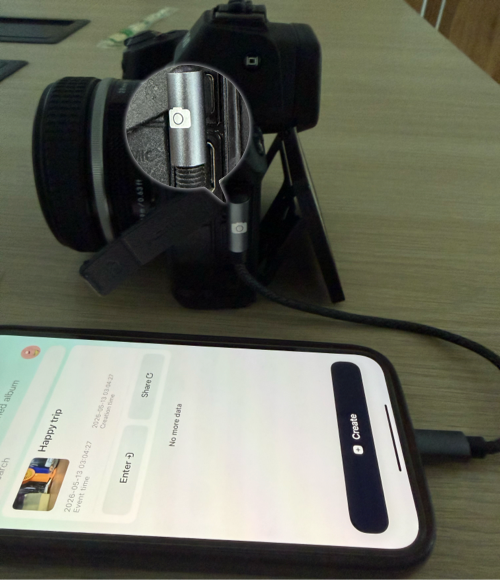
2. Connect the Camera to Your Phone Using the LUCO Transfer Cable
Tap to view full screen
3. Phone Settings When Using the Cable Connection for Shooting
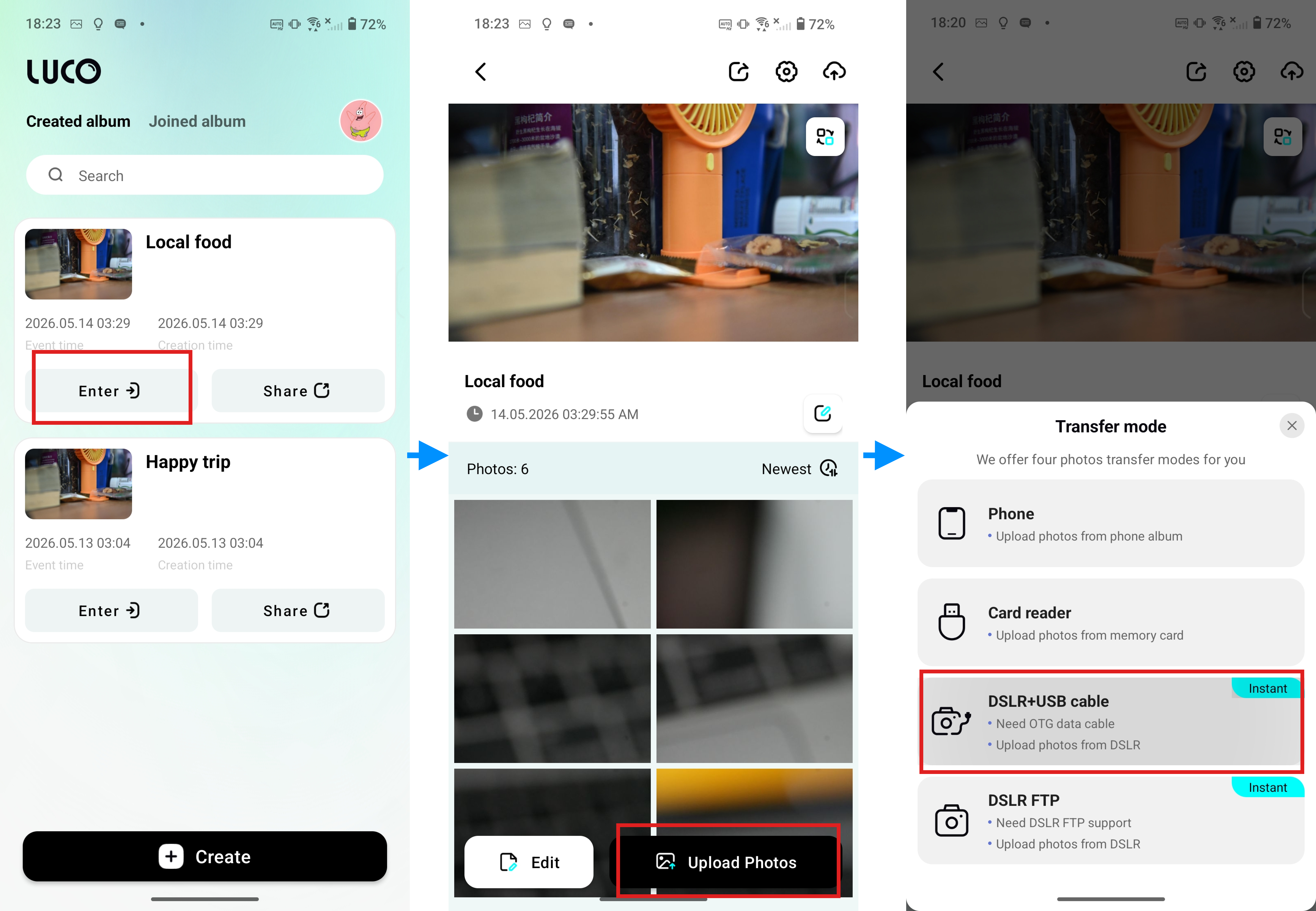
Go to the album you are about to shoot, tap "Upload Photos" > select "DSLR + USB Cable"
Tap to view full screen
(1)Android Phone Permission Settings
Note: Do not enable non-standard modes on your phone such as Power Saving Mode or Hidden Mode. Make sure your phone supports OTG functionality.
After connecting the phone and camera with the cable:
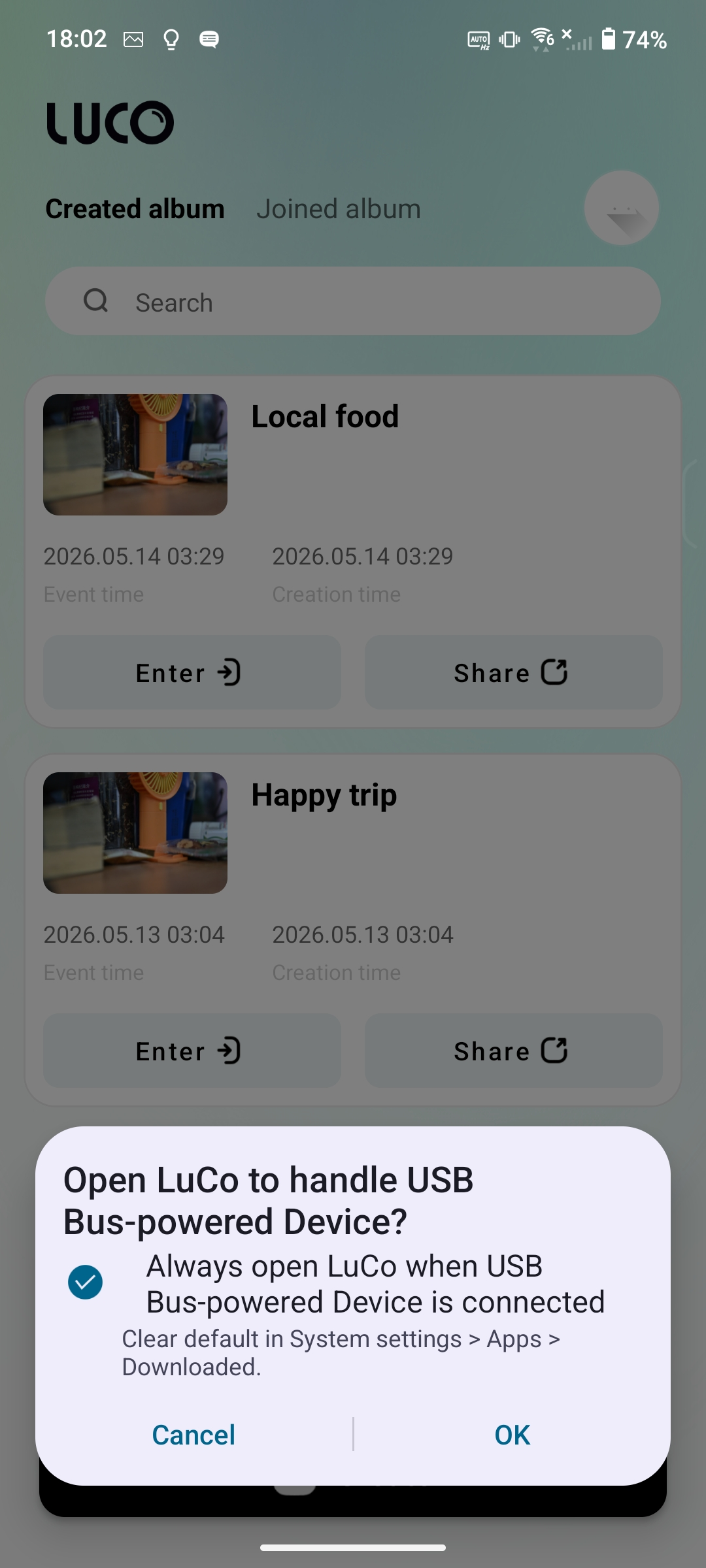
Popup prompt 1: "Open LuCo to handle USB Bus-powered Device?" Check "Always open LUCO when USB Bus-powered Device is connected" and tap "OK"
Tap to view full screen
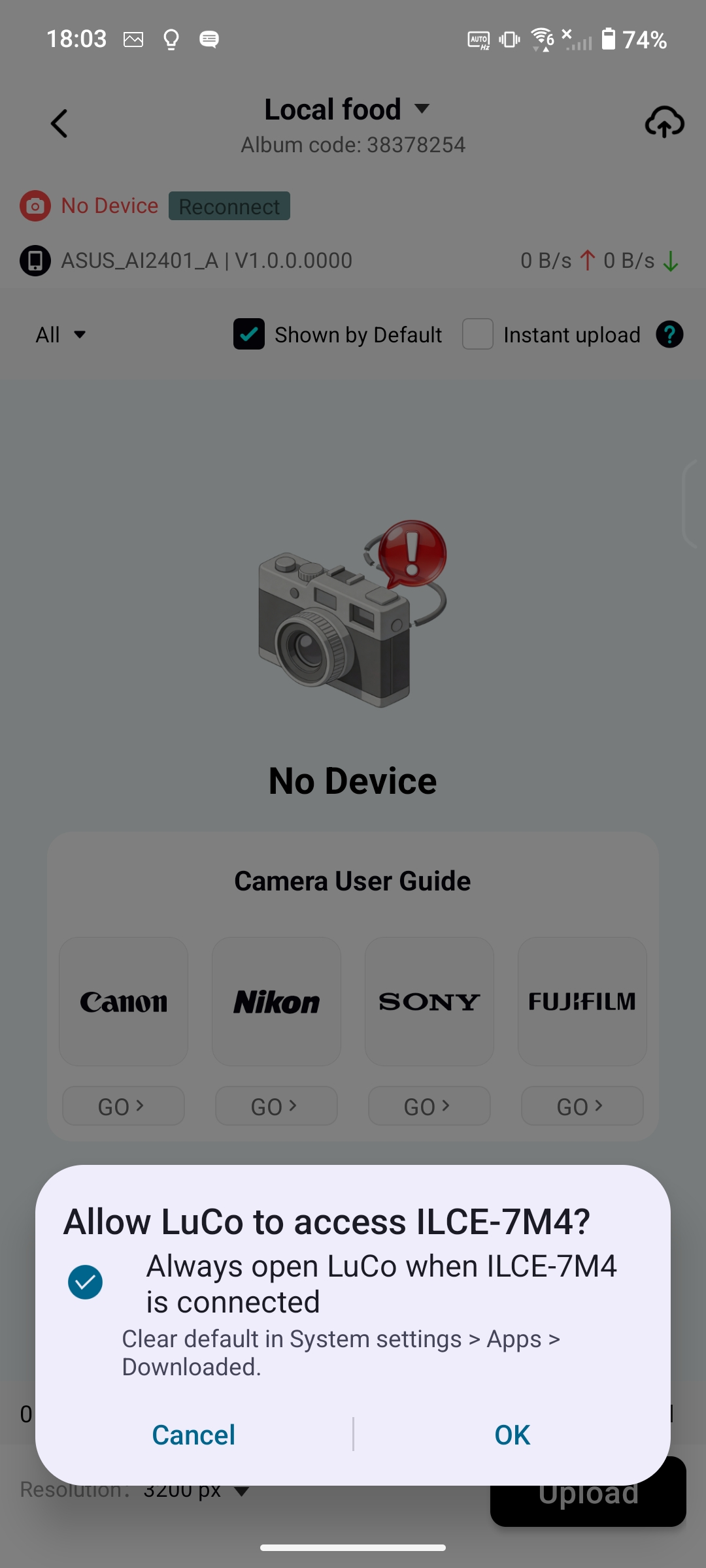
Popup prompt 2: "Allow LuCo to access ILCE-7M4 (camera model example)?" Check "Always open LuCo when ILCE-7M4 is connected" and tap "OK"
Tap to view full screen
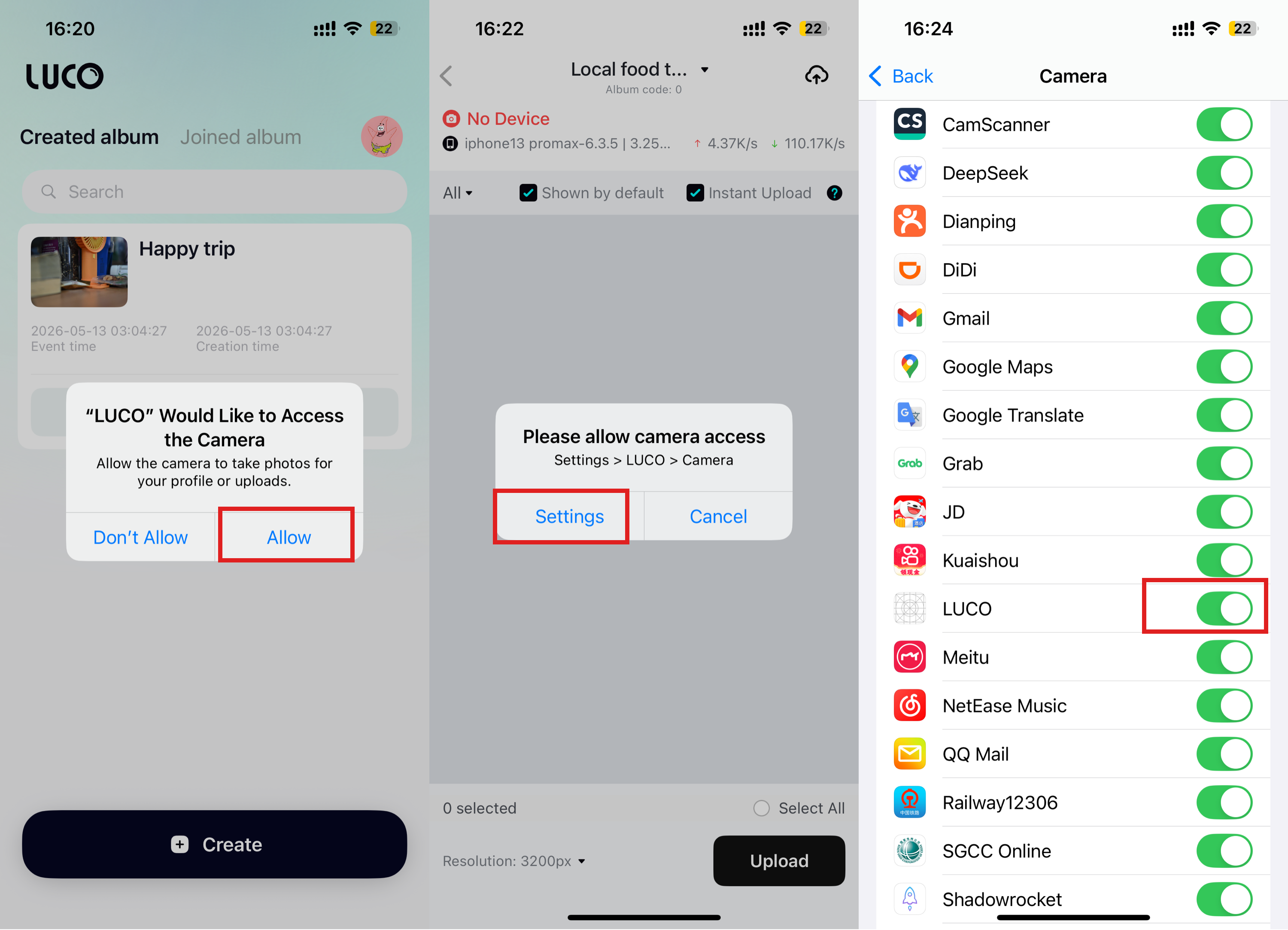
(2)iPhone Permission Settings
After connecting the camera, go to the album you are about to shoot and enable the permissions as shown in the image below.
Tap to view full screen
4. Connection Successful — Ready to Transfer
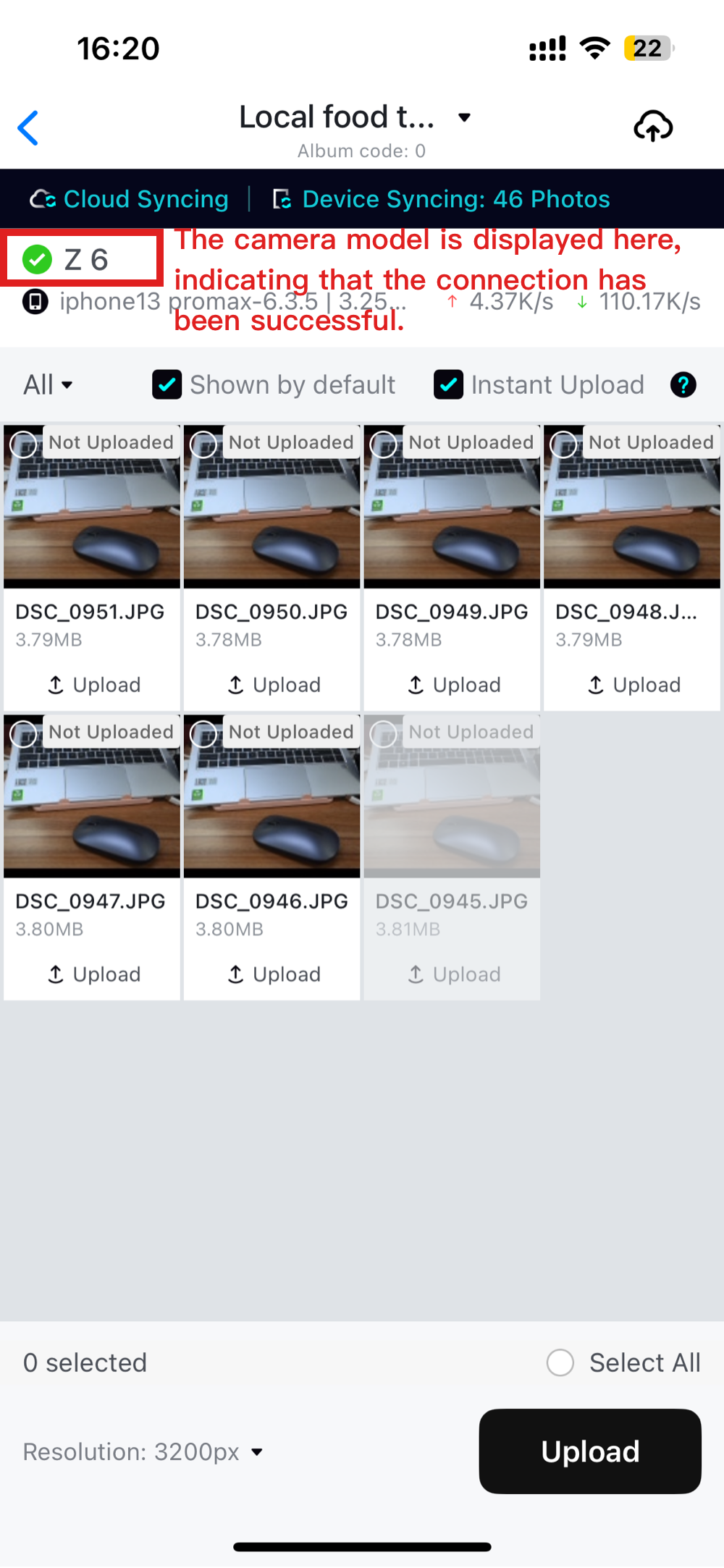
When the camera model is displayed on the transfer page (e.g., "Z6" as shown in the image), it means the connection is successful. You're now ready to start shooting and transferring!
Tap to view full screen